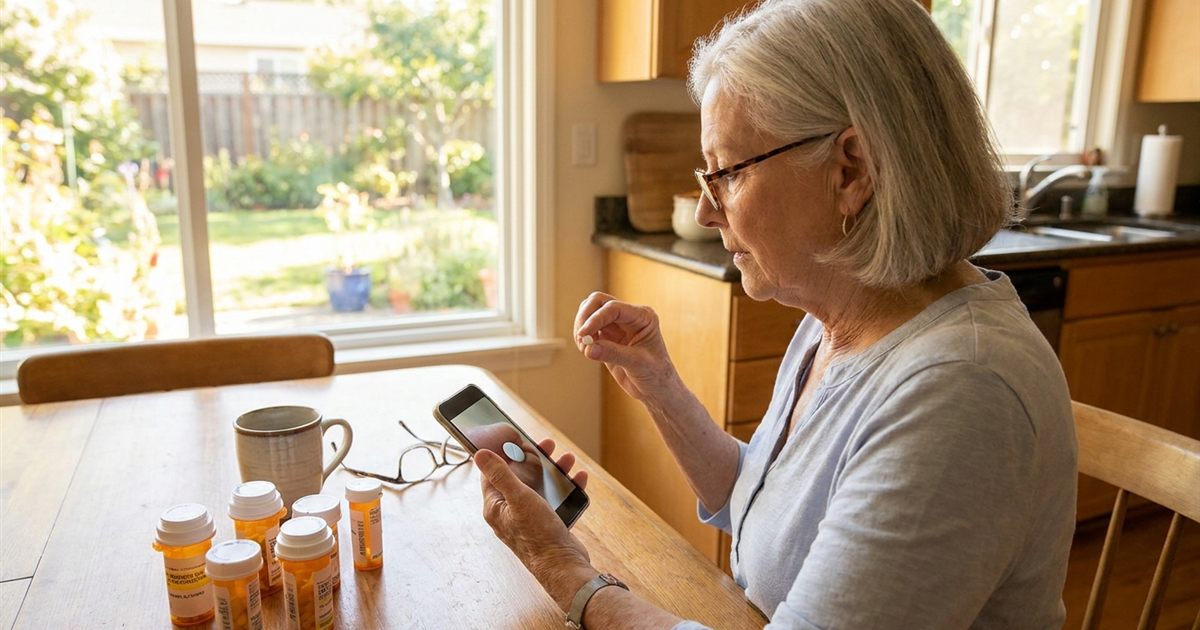
White, round, small. A surprising number of tablets look almost the same, and when a person takes several medications a day, the chance of reaching for the wrong one is real. Reading a tiny label is hard with tired eyes, and reading it every single time becomes a chore that people eventually skip. A reminder that tells you the name of the medication is useful. A reminder that also shows you a picture of it is better, because recognizing an image is faster and easier than decoding small print. This guide explains how the optional photo in AmberCap works, how to take a useful one and where it helps most.
See the right pill on screen when the reminder rings.
Try AmberCap free →Why Look-Alike Pills Cause Mix-Ups
Many generic tablets share the same shape and a similar color, and pharmacies sometimes switch manufacturers, which changes the appearance of a medication you have taken for years. Add a few more prescriptions, a vitamin or two and an occasional over-the-counter product, and the kitchen counter can hold half a dozen small pale tablets. Mix-ups rarely come from carelessness. They come from similarity combined with routine and sometimes poor lighting.
Names help, but names are long and unfamiliar, and the printed text on a pharmacy label can be very small. For someone with reduced vision, reading it each time is not a realistic safety plan. A picture works differently. The brain recognizes shapes and colors almost instantly, which is why a photo can be a faster check than reading a label.
How the Photo Works in AmberCap
When you add or edit a medication in AmberCap, there is an optional photo field. You pick an image from your phone, such as a picture of the pill or the pill bottle, and attach it to that medication. When the reminder fires and you open it, the reminder screen shows the medication name and dose, and, if you added one, the photo appears in a circle at the top. If there is no photo, an alarm icon is shown instead.
That moment is the one that matters. The alarm has just rung, you are about to take something, and the screen shows what it should look like. If the pill in your hand matches the picture, you are good. If it does not, you have a reason to stop and check before swallowing anything.
How to Take a Photo That Actually Helps
- Photograph the pill itself, in your palm or on a plain white surface, in good light.
- Include the bottle or blister card in a second medication if the pills of two prescriptions look alike, so you can tell them apart by their packaging.
- Take the picture close enough that the shape, color and any imprint are visible.
- Avoid glare and shadows, which change how color looks.
- Retake the photo if the pharmacy changes the manufacturer and the tablet changes appearance.
A good rule is to take the photo when you first set up the medication, using a fresh bottle, and review it again each time you refill. If the new tablets look different from the photo, that is a useful signal to ask the pharmacist whether the manufacturer changed rather than assuming it is the same drug.
Where Pill Photos Help Most
Add a photo, set the time, and let the app remind you. Start free.
Get started with AmberCap →- People who take many medications, where several tablets look alike.
- Seniors with reduced vision who struggle with small print. See our guide for [low-vision seniors and large text](/ambercap/blog/medication-reminder-app-for-low-vision-seniors-large-text).
- Couples who keep two sets of medications near each other. Photos reduce the chance of taking a partner's tablet. Read more in [a pill reminder app for couples sharing meds](/ambercap/blog/pill-reminder-app-for-couples-two-medication-schedules).
- Caregivers or family helping from a distance, who can recognize the medication in a picture even when they cannot read the label.
- Anyone starting a new prescription, when the pill is unfamiliar and everything feels new.
A Photo Is a Check, Not a Guarantee
It is important to be honest about what a picture can and cannot do. A photo helps you recognize a medication, but it cannot tell you whether the dose is right or whether a pill is genuine. Always follow the instructions on your pharmacy label, and if a tablet looks different from usual, ask your pharmacist before taking it. The photo is a second pair of eyes, not a replacement for the label or for professional advice.
It also does not replace the name and dose line. The reminder screen still shows the medication name and dose, and you should check them, especially for medications with similar names. Use the photo and the text together.
Setting It Up in Five Minutes
- Open AmberCap and add the medication with its name, dose and schedule.
- Tap the photo field and choose a picture from your phone's gallery.
- Save, and look at the reminder screen once to confirm the photo appears as you expect.
- Repeat for each medication that looks like another one, starting with the most similar pairs.
If you are helping a parent, do this together at the kitchen table with the actual bottles in front of you. It is a good moment to also check that the schedule is correct. Our guide to [setting up a reminder app for a parent](/ambercap/blog/how-to-set-up-medication-reminder-app-for-a-parent) covers the rest of the setup.
Combining Photos With Other Safeguards
Photos work best as one layer in a small system. Keep each medication in its original labeled container, use a pillbox only when you are confident you can fill it accurately, keep the reminder screen's mark-as-taken habit and review your list with a pharmacist from time to time. For people juggling many prescriptions, [managing multiple medications with an app](/ambercap/blog/managing-multiple-medications-schedule-app-seniors) offers a broader plan.
Finally, remember that look-alike risk changes over time. A refill from a different manufacturer, a new medication added by a specialist or a dose change can all alter what the tablets look like. A quick photo refresh at every refill takes less than a minute and keeps the reminder screen accurate.
Frequently Asked Questions
Can I add a photo of my medication in AmberCap?
Yes. Adding a photo is optional. You choose an image from your phone when you add or edit a medication, and it appears on the reminder screen when the alarm rings.
What should I photograph, the pill or the bottle?
The pill itself is the most useful for recognition. If two medications look alike, a photo that includes the bottle or packaging helps you tell them apart.
What if the pharmacy changes the look of my pills?
Retake the photo and check with your pharmacist. A tablet that looks different from the photo is a reason to ask before taking it.
Does the photo replace reading the label?
No. The photo helps you recognize a medication quickly, but you should still check the name and dose and follow your pharmacy label.
What appears if I do not add a photo?
The reminder screen shows an alarm icon along with the medication name and dose.