A new phone is exciting right up until you realize everything on the old one has to come across. For someone who relies on a medication reminder, the worry is specific: will the list of medications, the times and the history make the move, or will it all have to be typed in again? AmberCap keeps your information on the device, and offers an account backup so you can get back to it on another phone. Here is how that works, and what to check so no reminder goes missing during the switch.
Back up once, and a new phone is no problem.
Try AmberCap free →Where Your Medication Information Lives
By default, everything in AmberCap is saved on the device you are using. That keeps setup simple, since there is no account to create before you add your first medication. The tradeoff is the one every on-device app has: if the phone is lost, broken or replaced, the information on it does not automatically follow you. That is the gap account backup is meant to close.
How to Back Up Your Account
In Settings there is an Account backup section. Until you set it up, it tells you that everything is saved on this device and invites you to add an email so you can get back to it if you ever switch phones.
- Open Settings and find Account backup.
- Enter your email address.
- Create a password of at least six characters and type it again to confirm.
- Tap Save my account and check your email for the confirmation message.
- Once it is confirmed, the section shows that your account is backed up, along with the email you used.
Account backup is available without Premium. Do this on the old phone while it still works, and ideally before you need it. The password is what lets you sign in again later without depending on being able to open an old email message, so choose something you will remember or store it somewhere safe.
Signing In on the New Phone
On the new phone, install AmberCap and open Settings. Under Account backup, there is a link for people who are already backed up on another device. Tap it and sign in with the email and password you created. This is how you get back to your account instead of starting from an empty screen.
Once you have signed in, do not assume everything is perfect. Go through the checklist below. A few minutes now is much cheaper than discovering a missing reminder next week.
The Checklist After Switching Phones
Free to start, set up in under a minute.
Get started with AmberCap →- Open the medication list and confirm every medication is there with the right dose and instructions.
- Check the time and frequency of each reminder, especially any weekly, monthly or every-few-hours schedule.
- Allow notifications for AmberCap when the new phone asks. Without that permission the reminders cannot ring.
- Make sure the phone volume and any Do Not Disturb settings will not block an alarm.
- Check that battery optimization is not set to restrict AmberCap in the background.
- Ask a family member who is linked to confirm they still receive the family information.
Test a Reminder Before You Rely On It
Add a harmless test or set the next real dose close to the current time, and confirm the alarm rings at full volume with the phone on Silent. Seeing it ring on the new phone is far more reassuring than assuming the settings carried over. New phones often have different default battery and notification behavior, and that is the most common reason a reminder behaves differently after an upgrade.
Keep the Old Phone Until You Are Sure
Do not wipe or give away the old phone the same day. Keep it for a week or two, charged and set aside, in case something did not transfer the way you expected. It also helps to turn off the reminders on the old phone once the new one is confirmed, so you are not hearing two alarms for the same dose and wondering which one counts.
If the Phone Was Lost or Broken
This is when backup pays off. If the old phone is gone, you cannot back it up anymore, but if you had already saved your account, you can sign in on the replacement and get back to it. If you had not, you will need to enter the medications again. Keep a written list of your medications, doses and times somewhere safe, so you can rebuild the schedule quickly from the pharmacy label or from a recent visit summary.
How This Differs From the Email Backup of History
Premium also includes email backups of your history, which is a record you receive by email. That is different from account backup, which is about getting back into your account on another device. The two serve different purposes, and you do not need Premium for account backup.
Helping a Parent Switch Phones
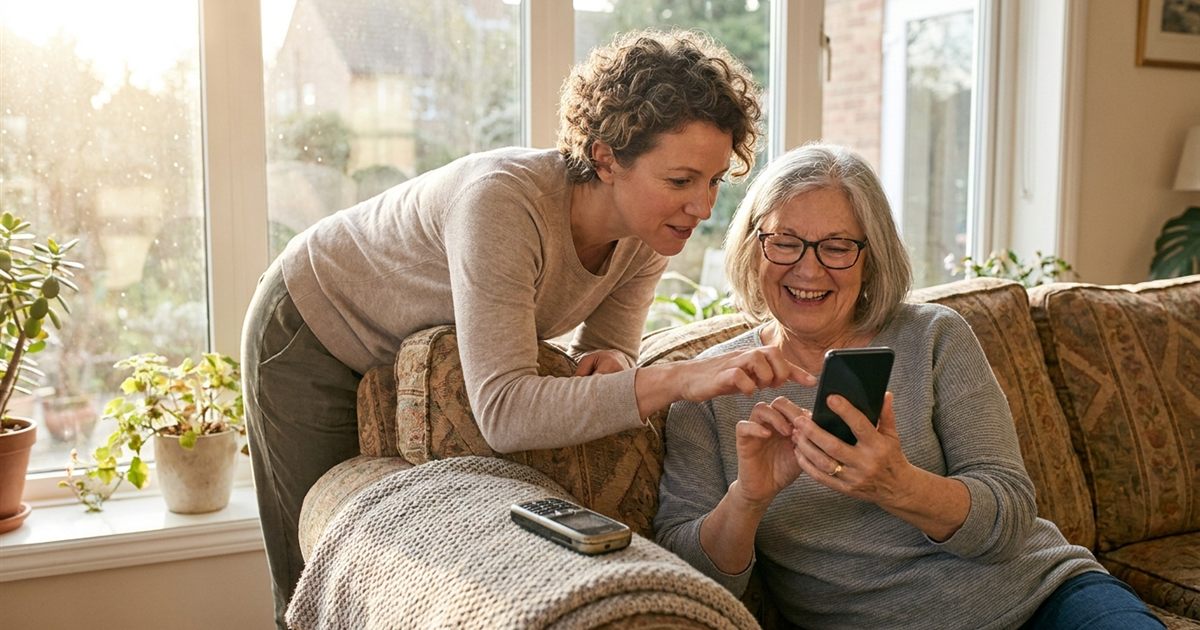
If you are the one helping, do the backup together while the old phone still works, and write the email and password down for them in a safe place. Then do the checklist side by side on the new phone. Setting up the reminders again with a parent next to you takes a few minutes, and it avoids the situation where a parent assumes everything moved and a week of doses goes unreminded.
Frequently Asked Questions
Does AmberCap keep my medications if I get a new phone?
Your information is saved on the device. If you set up account backup with an email and password, you can sign in on a new phone to get back to your account.
Where do I set up the backup?
In Settings, under Account backup. Enter your email, create a password of at least six characters, and confirm it through the email you receive.
Do I need Premium to back up my account?
No. Account backup is available to everyone. Premium adds things like unlimited medications, family alerts and email backups of your history.
What should I check after switching phones?
Confirm every medication and its schedule, allow notifications, check volume and battery settings, and test that a reminder rings with the phone on Silent.
What if I never set up a backup and lose my phone?
You will need to add your medications again. Keep a written list of medications, doses and times so you can rebuild the schedule quickly.